
An offline-backup workflow also requires permission, the right tool, a verified file, and enough context to understand it later.
OFDownloader provides Windows, macOS, and Chrome workflows for authorized offline video backups. Interfaces may change, so consult current official documentation when labels or screens differ.
Confirm authorization first
Use OFDownloader only for videos that you created, own, or have explicit permission to save. Paying for access does not automatically transfer copyright or grant permission to download and redistribute media. Check the creator’s instructions, your agreement, and platform rules before making a local copy.
Do not use it to gain unauthorized access, bypass controls, or republish another person’s work. If permission is uncertain, ask the creator or use the platform’s official offline option. Record the rights owner, approved files, purpose, and retention or sharing limits.
The five-step workflow
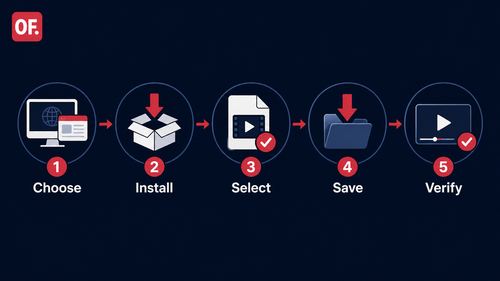
- Choose the desktop app or Chrome extension.
- Install it from the official source.
- Select only authorized content.
- Save it to a deliberate local folder.
- Verify and organize the finished file.
A file that cannot be played, traced, or matched to its permission record is not a reliable backup.
Step 1: Choose desktop or Chrome
Start at the official OFDownloader download page, which lists the Windows, macOS, and Chrome options.
The Chrome extension suits a small, one-off task while browsing. The desktop application is more practical for recurring work or a larger queue because it provides a separate workspace and supports deliberate folder organization.
| Situation | Suggested workflow |
|---|---|
| One authorized video | Chrome extension |
| Occasional small backup | Chrome or desktop |
| Recurring archive sessions | Desktop app |
| Larger queue or structured folders | Desktop app |
Install only the workflow you need and test it with one non-sensitive file before processing more content.
Step 2: Install from the official source
For Windows or macOS, choose the matching installer on the official page, save it, and follow the operating system prompts. Stop if the installer name, publisher details, or screens differ materially from the documentation. Keep the operating system and security software current, and note the default output folder before starting work.
The Chrome workflow uses a ZIP package loaded as an unpacked extension. Follow the current OFDownloader Chrome ZIP installation guide:
- Download and extract the official ZIP into a permanent folder.
- Open chrome://extensions.
- Enable Developer mode.
- Select Load unpacked.
- Choose the extracted folder containing manifest.json.
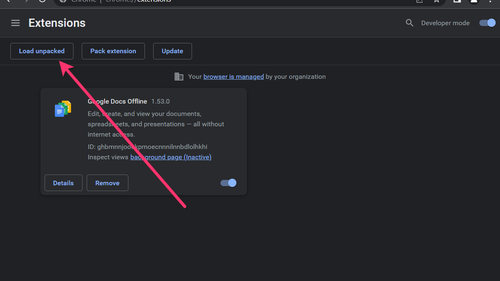
Do not select the ZIP itself, and do not move or delete the extracted folder afterward. Review the extension’s permissions and site access. Where Chrome allows it, limit access to the sites needed for the task. Avoid Incognito or file access unless a documented feature requires it.
Step 3: Select an authorized job
Sign in to the relevant service normally and open only the video or library covered by your permission. For Chrome, use the extension while viewing the permitted item. For desktop, add only the authorized creators or posts to the queue.
Do not select an entire library merely because the interface permits it. Smaller batches are easier to verify, organize, and delete when a retention period ends. Run one test item first and check picture, audio, duration, and seeking before starting a larger job.
Step 4: Choose a destination and save
Create the destination folder before starting. A clear structure could be:
Authorized Video Archive / Project / Owner / Year-Month
Use filenames that remain meaningful outside the original website, such as:
YYYY-MM-DD_owner_topic_01.mp4
Confirm that the drive has enough free space and is not publicly shared. Set the output location before adding a larger batch. If a job is interrupted, do not assume the partial file is usable; restart or resume only through the application’s documented controls.
Step 5: Verify and index the result
Open the saved file locally. Check that the beginning, middle, and end play, audio is synchronized, duration is plausible, and the file sits in the intended folder. Confirm that its permission record points to the correct source. Important files should have a second copy on different storage.
A small spreadsheet is enough for an archive index:
| Field | Example |
|---|---|
| Local filename | YYYY-MM-DD_owner_topic_01.mp4 |
| Source | Original page or project location |
| Rights owner | Creator, client, or organization |
| Permission | Contract, email, license, or own work |
| Date saved | YYYY-MM-DD |
| Review date | Project close or agreed retention date |
Common setup problems
“Load unpacked” is missing: Enable Developer mode on chrome://extensions.
Chrome cannot load the extension: Extract the ZIP and select the folder containing manifest.json, not the ZIP or a higher-level folder.
The extension disappears after files move: Restore the extracted folder or load it again from its new location.
The saved file does not play: Check storage, retry one authorized test item, and verify it again. Use official support rather than downloading a replacement from an unofficial mirror.
Screens no longer match: Return to the official product and installation pages and confirm that the package and instructions are current.
Finish with cleanup
When a project ends, delete duplicates, failed files, expired working copies, and material whose authorization has ended. Remove the extension or desktop application if it is no longer used. Responsible offline backup is not about collecting the largest library; it is about maintaining a controlled, verifiable copy for a legitimate purpose.
Before closing the job, confirm that the content is authorized, the software came from its official source, one item was tested, the finished file plays correctly, and its source and permission are recorded. OFDownloader can simplify the capture step, but a reliable archive still depends on careful selection, verification, organization, and timely removal.