
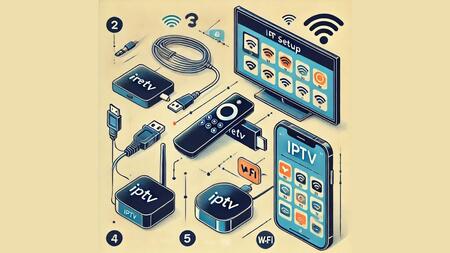
Setting up IPTV is usually quick, but the best experience depends on doing the basics right. Correct app choice, proper login method, stable internet, and a clean playlist setup can eliminate most buffering and loading issues from day one. This guide walks you through IPTV installation on Firestick, Smart TV, and mobile, plus the key settings that improve playback quality. If you are starting fresh, testing a reliable provider like Indian IPTV helps you confirm your device setup is correct before you optimize advanced settings.
1. Before You Start. What You Need
Have these ready so setup is smooth.
Essentials
- Stable internet connection (preferably 25 Mbps or higher for HD, higher for 4K)
- IPTV subscription details (one of the following)
- M3U playlist URL
- Xtream Codes API login (username, password, server URL)
- Portal URL (less common, used by some apps)
- A compatible IPTV app installed on your device
- Optional but recommended
- Ethernet cable (best for Smart TV or Android TV boxes)
- VPN (only if you face ISP routing issues, not mandatory)
2. Choose the Right IPTV App for Your Device
Your provider may recommend specific apps. In general, pick an app that supports EPG, favorites, and stable playback.
Common app types
- IPTV player apps that support M3U
- IPTV player apps that support Xtream Codes API
- Smart TV apps that support playlists and EPG integration
Pick one primary app per device first. Avoid installing multiple players at once during initial testing because it makes troubleshooting harder.
3. Firestick Setup. Step by Step Installation
Firestick is one of the most popular IPTV devices because it is affordable and fast.
Step 1. Prepare Firestick for IPTV apps
- Go to Settings
- Select My Fire TV
- Open Developer Options
- Enable
- ADB debugging
- Apps from Unknown Sources (or “Install unknown apps” depending on Fire OS version)
Step 2. Install the Downloader app
- From the Firestick home screen, use Search
- Type Downloader
- Install the Downloader app (official orange icon)
Step 3. Install your IPTV player
- Open Downloader
- Enter the download URL for your IPTV player APK (your provider usually supplies this)
- Download and install
- Delete the APK after install to save space (Downloader will prompt you)
Step 4. Log in using your subscription details
Open the IPTV app and choose the login method you received.
Option A. Xtream Codes API
- Enter server URL
- Enter username
- Enter password
- Save and load content
Option B. M3U Playlist
- Add playlist name (any label)
- Paste M3U URL
- Add EPG URL if provided
- Save and load channels
Step 5. Improve Firestick playback settings
In your IPTV app settings:
- Enable hardware decoding
- Set buffer size to small or medium (increase only if you have unstable Wi Fi)
- Turn on auto update EPG daily
If possible, connect Firestick to a 5 GHz Wi Fi network for stronger speed and lower interference.
4. Smart TV Setup. Step by Step Installation
Smart TV setup depends on your TV brand and operating system.
A. Android TV and Google TV
These TVs behave like an Android device, making IPTV setup simple.
- Open Google Play Store
- Search for an IPTV player app that supports your login method
- Install the app
- Open the app and add your IPTV details
- Allow the app to load channels and EPG
Best tip for Android TV
If your TV is far from the router, use Ethernet or a mesh Wi Fi extender. Smart TVs often have weaker Wi Fi antennas than phones.
B. Samsung Smart TV (Tizen) and LG Smart TV (webOS)
Some IPTV apps are available directly in the TV app store. If not, you can still use IPTV through supported Smart TV apps that accept M3U or Xtream credentials.
- Open your TV’s App Store
- Search for an IPTV player
- Install and open the app
- Add your playlist or Xtream login
- Save and load channels
If your TV does not support the app you need
Use a Firestick or Android TV box. External devices often perform faster than built in Smart TV processors, especially on older models.
5. Mobile Setup. Step by Step Installation for Android and iPhone
Mobile IPTV is ideal for travel, quick viewing, and testing streams before setting up a home device.
A. Android Phone Setup
- Open Google Play Store
- Install an IPTV player app that supports M3U or Xtream
- Open the app and choose login method
- Paste M3U link or enter Xtream credentials
- Load channels and EPG
Android tip
Turn off battery optimization for the IPTV app if you experience sudden stops or background disconnects.
B. iPhone and iPad Setup (iOS)
- Open App Store
- Install an IPTV player app that supports M3U or Xtream
- Open the app and add your IPTV details
- Let the playlist and EPG sync
- Create favorites for faster access
iOS tip
On mobile data, keep stream quality on Auto or 720p to prevent stutters if your network changes while moving.
6. Setting Up EPG and Favorites the Right Way
EPG makes IPTV feel like cable by showing schedules and program details.
EPG setup checklist
- Add the EPG URL if provided
- Set EPG update frequency to daily
- Confirm correct time zone in app settings
- Assign EPG source to your playlist if your app supports multiple playlists
Then create:
- Favorites list for daily channels
- Custom categories like Sports, Movies, Kids, News
This saves time and reduces constant scrolling.
7. Recommended Performance Settings for All Devices
Once your IPTV works, apply these settings to reduce buffering and improve picture quality.
Best settings
- Hardware decoding ON
- Video output set to Auto or match your TV resolution
- Buffer set to Low or Medium
- Use Ethernet for Smart TV or streaming device when possible
- Use 5 GHz Wi Fi for Firestick and phones near the router
- Close unused apps running in the background
8. Regional Channel Setup. Organized Viewing for Language Content
If you watch regional content, the easiest way to enjoy IPTV is by selecting a plan that clearly organizes language based channels and updates EPG properly. Many viewers prefer a dedicated regional lineup like Telugu IPTV so the channel list stays clean, navigation is faster, and favorites can be set up without hunting through large mixed libraries.
9. Common Setup Problems and Fixes
Problem. Playlist loads but channels do not play
- Check internet connection
- Confirm your subscription is active
- Try switching player mode or enabling hardware decoding
Problem. EPG not showing
- Confirm EPG URL is correct
- Set time zone correctly
- Trigger manual EPG refresh
Problem. Firestick app keeps crashing
- Clear cache
- Restart device
- Remove unused apps to free storage
Problem. Buffering on TV but not on phone
- TV Wi Fi signal is weaker. Use Ethernet or move router closer
- Check TV app settings and enable hardware decoding
Conclusion
A smooth IPTV experience starts with correct device setup. Once your app is installed, your login method is configured properly, and EPG is syncing, IPTV becomes as easy as cable, but far more flexible. Firestick offers the simplest home setup, Smart TVs work well when the right app is available, and mobile viewing is perfect for testing and travel. With the right installation steps and stable internet, your IPTV will run clean, fast, and reliably across all devices.